 Numeric Keypad
Dell™ Latitude™ D610 User's Guide
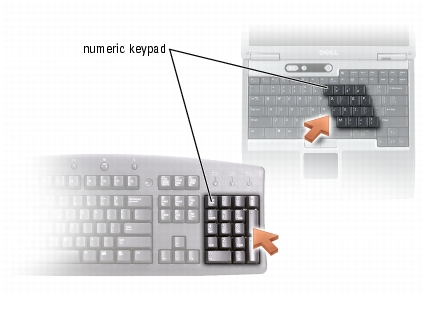
The numeric keypad functions like the numeric keypad on an external keyboard. Each key on the keypad has multiple functions. The keypad numbers and symbols are marked in blue on the right of the keypad keys. To type a number or symbol, hold down <Fn> and press the desired key.
 light indicates that the keypad is active.
<Ctrl><Shift><Esc> | Opens the Task Manager window |
<Fn><Num Lock> | Enables and disables the scroll lock |
<Fn><F3> | Displays the Dell™ QuickSet Battery Meter |
<Fn><F10> | Ejects the tray out of the drive (if Dell QuickSet is installed). |
<Fn><F8> | Switches the video image to the next display option. The options include the integrated display, an external monitor, and both displays simultaneously. |
<Fn> and up-arrow key | Increases brightness on the integrated display only (not on an external monitor). |
<Fn> and down-arrow key | Decreases brightness on the integrated display only (not on an external monitor). |
<Fn><F2> | Enables and disables radios, including wireless networking and Bluetooth wireless technology |
<Fn><Esc> | Activates a power management mode. You can reprogram this keyboard shortcut to activate a different power management mode using the Advanced tab in the Power Options Properties window. |
<Fn><F1> | Places your computer in hibernation. |
<Fn><Page Up> | Increases the volume of the integrated speakers and external speakers, if attached |
<Fn><Page Dn> | Decreases the volume of the integrated speakers and external speakers, if attached |
<Fn><End> | Enables and disables the integrated speakers and external speakers, if attached |
Windows logo key and <m> | Minimizes all open windows |
Windows logo key and <Shift><m> | Maximizes all windows |
Windows logo key and <e> | Runs Windows Explorer |
Windows logo key and <r> | Opens the Run dialog box |
Windows logo key and <f> | Opens the Search Results dialog box |
Windows logo key and <Ctrl><f> | Opens the Search Results-Computer dialog box (if the computer is connected to a network) |
Windows logo key and <Pause> | Opens the System Properties dialog box |
To adjust keyboard operation, such as the character repeat rate, open the Control Panel, click Printers and Other Hardware, and click Keyboard.
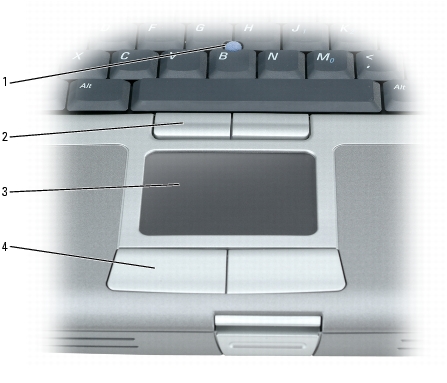
The touch pad detects the pressure and movement of your finger to allow you to move the cursor on the display. Use the touch pad and touch pad buttons as you would use a mouse.
|
1 | track stick | 3 | touch pad |
|
2 | track stick buttons |
4 | touch pad buttons |
You can also use the track stick to move the cursor. Press the track stick left, right, up, or down to change the direction of the cursor on the display. Use the track stick and track stick buttons as you would use a mouse.
You can use the Mouse Properties window to disable the touch pad and track stick or adjust their settings.
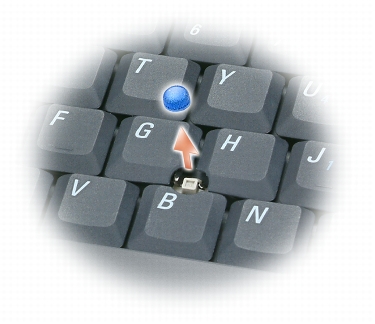
You can replace your track stick cap if it wears down from prolonged use or if you prefer a different color. You can purchase additional caps by visiting the Dell website at www.dell.com.

|
NOTE: You may not be able to purchase additional caps from Dell in certain countries. |

|
NOTICE: The track stick can damage the display if it is not properly seated on the post. |